new Desktop Call Recorder v. 3.5
Call recorder with transcripts you can search
Automatic call recording for Windows
Desktop Call Recorder records your calls in Zoom, Teams, Webex, Google Meet, WhatsApp, Viber, Slack and other apps. Recording starts when the call starts and stops when it ends. It can also turn a recording into text, so you can read a call instead of listening to it again, and find any call by a word that was said in it. Transcription is done on your own computer and nothing is uploaded.
What is new in 3.5 ⇒ All release notes ⇒
Recording
- Records calls in Zoom, Microsoft Teams, WhatsApp, Telegram, Slack, Signal, Viber, Webex, Facebook Messenger, Line, Botim, Bria, Skype for Business, VoiceEdge and Aircall, and calls in Chrome or Edge such as Google Meet and Google Voice.
- Calls are detected by their audio, so the call app can stay minimised.
- Your voice and the other side are recorded on separate stereo channels and saved as an MP3 file.
- A Mute button silences your side of the recording while the other side is still recorded. You can also pause and resume.
- Manual recording with the microphone and speakers you choose.
- Echo cancellation for calls without a headset.
- Starts with Windows and works in the background.
- The app windows come in navy, teal or dark. You choose in Settings, General settings, Theme.
- All recordings and transcripts are stored on your computer. Only you have access to them.
Transcription
- Transcription runs on the CPU. A graphics card is not needed.
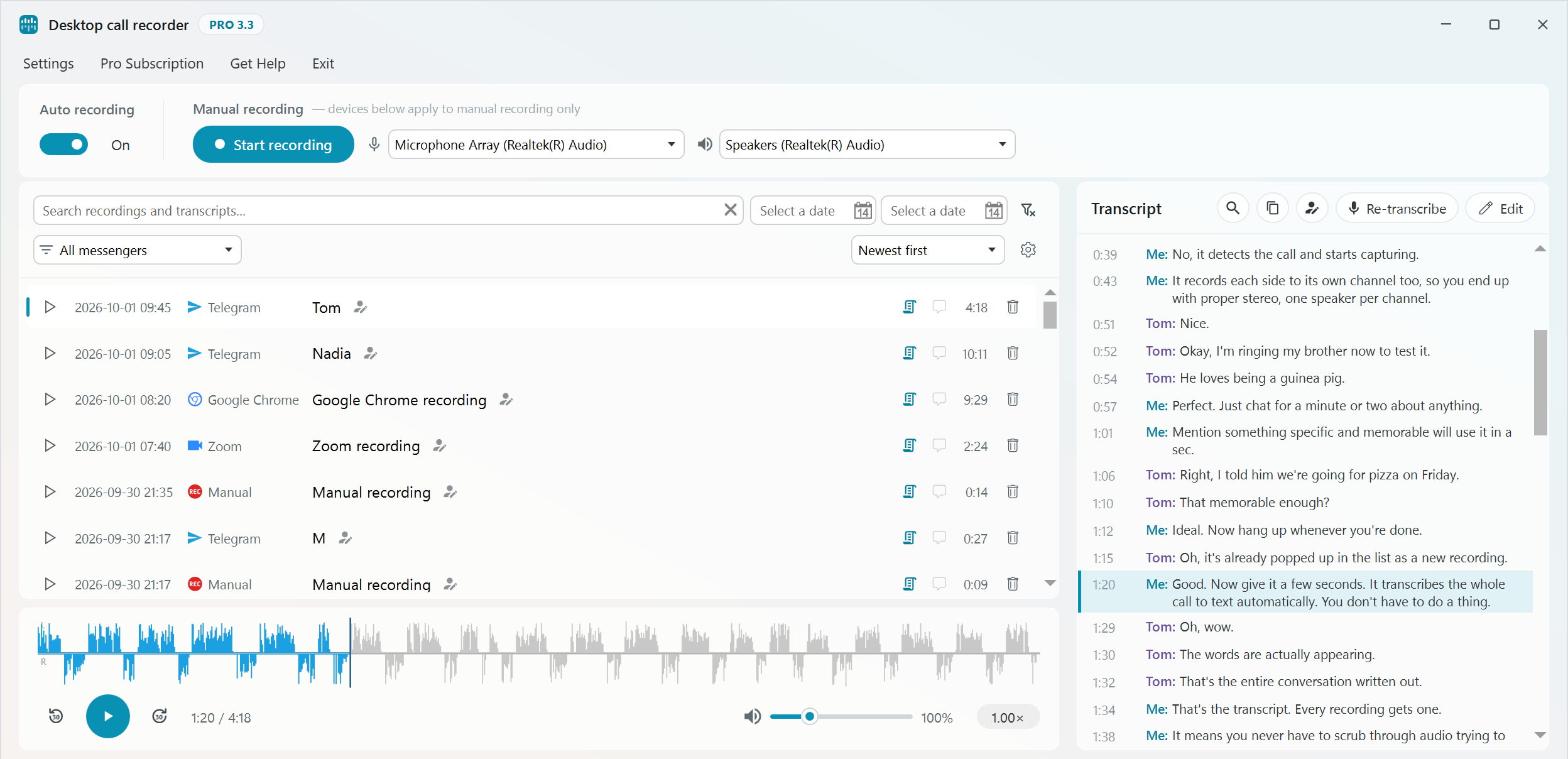
- Each line of the transcript shows who said it.
- New calls can be transcribed automatically, or you press Transcribe for any recording. There are three models: base, small and large-v3-turbo.
- Search looks through recording names, notes and transcript text. Click a match and the call plays from that moment.
- You can correct the transcript by hand or copy it with one click. It is saved next to the MP3 as .txt and .srt files.
Player
- The player shows a waveform and plays at 0.5x to 2x speed, with volume up to 400% for quiet recordings.
- The transcript scrolls along with playback. Click a line to jump to that place in the call.
- Calls play in mono by default, so a one ear headset plays the whole call. Turn off Mono to hear the two sides left and right.
- You can rename the contact of a recording. The MP3, its transcript files and the speaker name in the transcript change with it.
- The recordings list can be filtered by date and messenger.
How transcription works ⇒ About the player ⇒
Free version
- Free for personal, non-commercial use: up to 30 recordings in 30 days, and the first 3 minutes of each call are transcribed.
- Pro has no limits and adds stealth mode.
Learn more ⇒
